

Deciding how to pay yourself as a small business owner shouldn’t be a headache. Whether you are a Sole Proprietor or an LLC, an owner’s draw is often the most flexible way to access your profits.
However, many owners mistakenly record these draws as “expenses,” which can lead to major errors on your tax returns. This guide provides the exact workflow used by professional bookkeepers to set up and manage owner’s draws in QuickBooks Online (QBO).
Owner’s Draw vs. Salary: Which is Right for You?
Before clicking “New Account,” it is vital to understand the tax implications. An owner’s draw is a distribution of the company’s equity, not a business expense.
| Feature | Owner’s Draw | Salary (W-2) |
| Tax Impact | Not deductible; taxed at personal level | Business deduction; payroll taxes apply |
| Best For | Sole Props, LLCs, Partnerships | S-Corps, C-Corps |
| Flexibility | Take money whenever needed | Fixed schedule and amount |
| QuickBooks Entry | Equity Account | Payroll Expense |
Pro Tip: If your business is netting over $60,000, you may save significant money on self-employment taxes by switching to an S-Corp structure and paying yourself a “reasonable salary.”
Step-by-Step: Creating the Account in QBO
Note: These steps are for QuickBooks Online. If you are using the Desktop version, the shortcuts will differ.
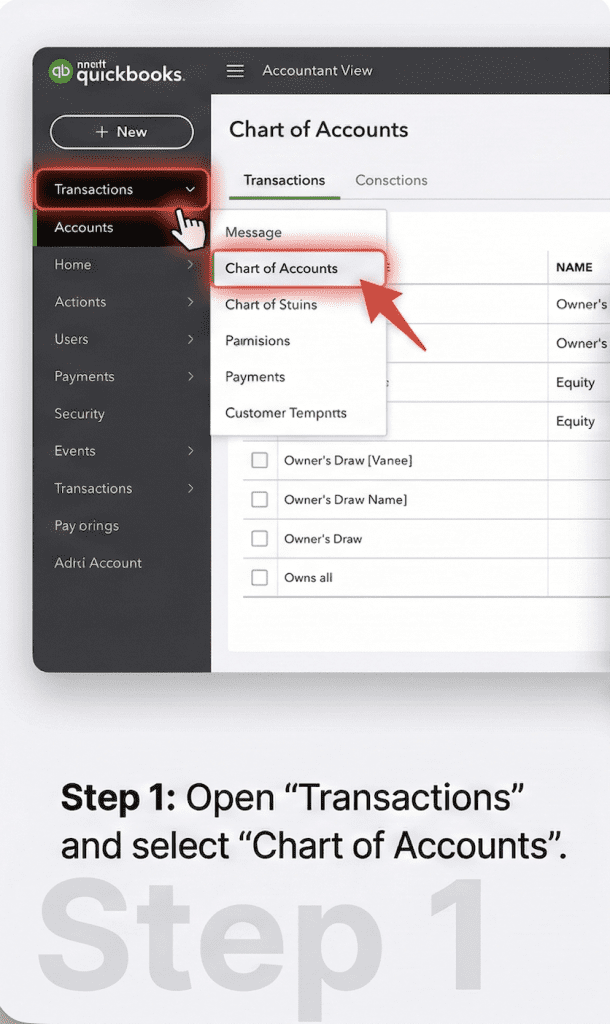
Step 1: Open the Chart of Accounts
Navigate to the Transactions tab in your left-hand menu and select Chart of Accounts. Click New in the top right corner.
Step 2: Categorize as Equity
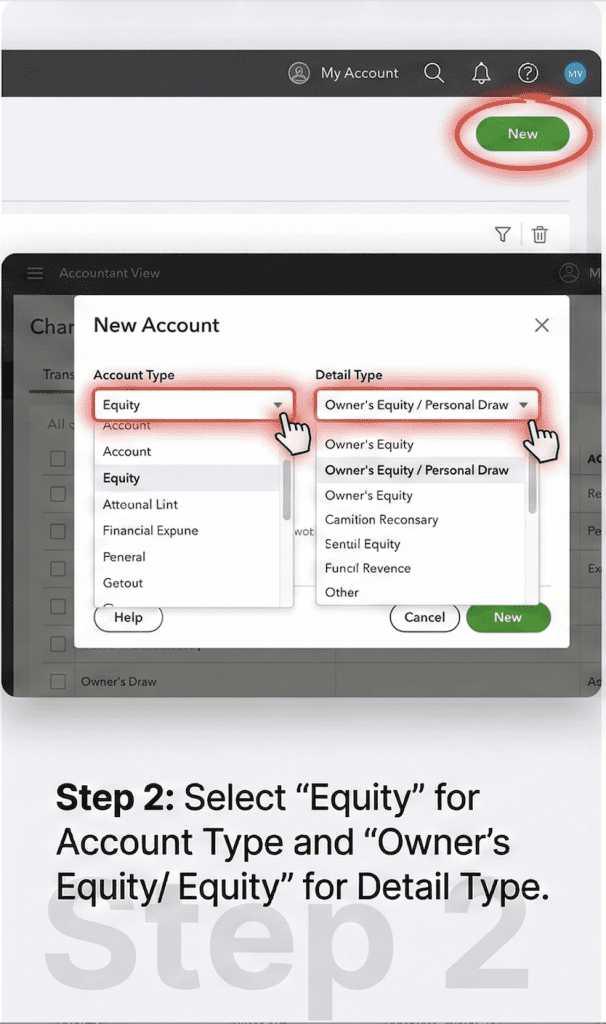
In the “Account” window, the most important setting is the Account Type.
- Account Type: Select Equity.
- Detail Type: Select Owner’s Equity or Personal Draw.
Step 3: Naming Convention
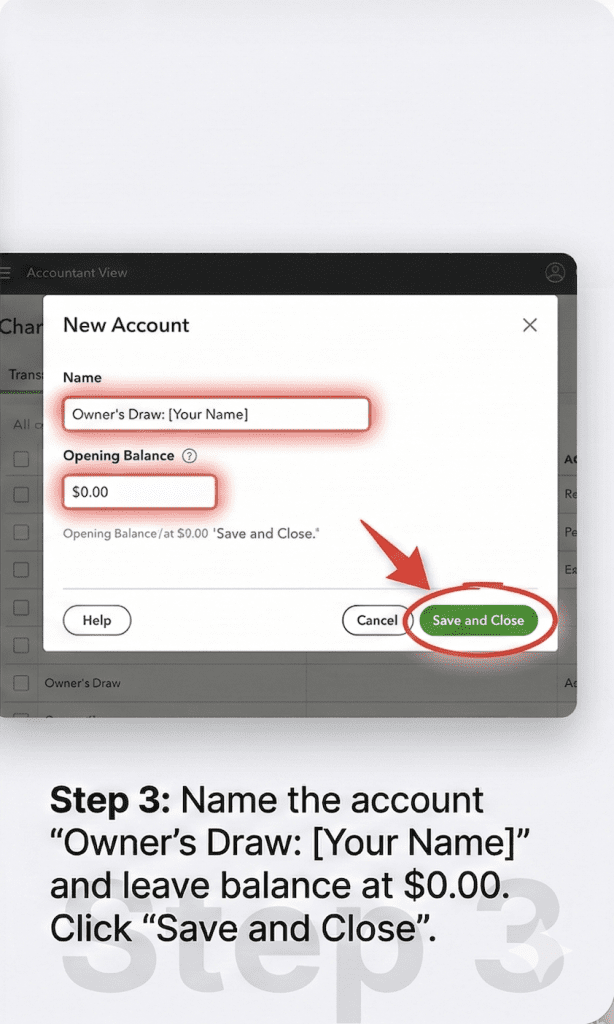
Name the account “Owner’s Draw: [Your Name]”. Using your name is helpful if you have multiple partners or owners. Leave the “Opening Balance” field at $0.00—you will build the balance as you take money out.
How to Record a Payment to Yourself
Once the account is live, do not simply transfer money from your bank app without recording it in QBO.
- Click the + New button.
- Select Check (if printing a physical check) or Expense (if doing an ACH transfer).
- In the Category section, type “Owner’s Draw.”
- QuickBooks will automatically decrease your “Cash” and increase your “Draws.”
3 Common Mistakes to Avoid
- Recording a Draw as an “Expense”: This is the #1 mistake. It artificially lowers your profit on paper but will be rejected by the IRS during an audit.
- Mixing Personal and Business Funds: Avoid using your business debit card for groceries. Instead, take a formal Owner’s Draw into your personal account first. This protects your “Corporate Veil.”
- Forgetting Self-Employment Tax: Remember, even if you don’t take a draw, you owe taxes on the business’s Net Profit. Set aside 25-30% of your profits for quarterly estimated taxes.
FAQ (Frequently Asked Questions)
Does an owner’s draw reduce my business’s taxable income?
No. An owner’s draw is a distribution of profit, not an expense. You are taxed on the profit your business earns, regardless of whether you leave it in the business bank account or draw it out.
Why does my Owner’s Draw show as a negative number?
On your Balance Sheet, Equity accounts usually have a “Credit” balance. A draw is a “Debit” (it reduces equity), so it is displayed as a negative number. This is correct and expected!
How often can I take a draw?
As often as you like, provided the business has the cash flow to support it. Unlike payroll, there is no government-mandated schedule for draws.
Get a Professional Financial Review
Setting up the account is only half the battle. To ensure your business is optimized for maximum tax savings and growth, you need a partner who understands the “why” behind the numbers.
At Luca Financial, we don’t just “do taxes,” we empower small business owners with the clarity they need to scale.